Forsaken Performance Settings 2026: Lag Fix, FPS Boost & Best Settings
Forsaken performance settings 2026: best graphics, 5 FPS-boost tweaks that work, lag fix framework, optimal keybinds, and mobile vs PC settings.
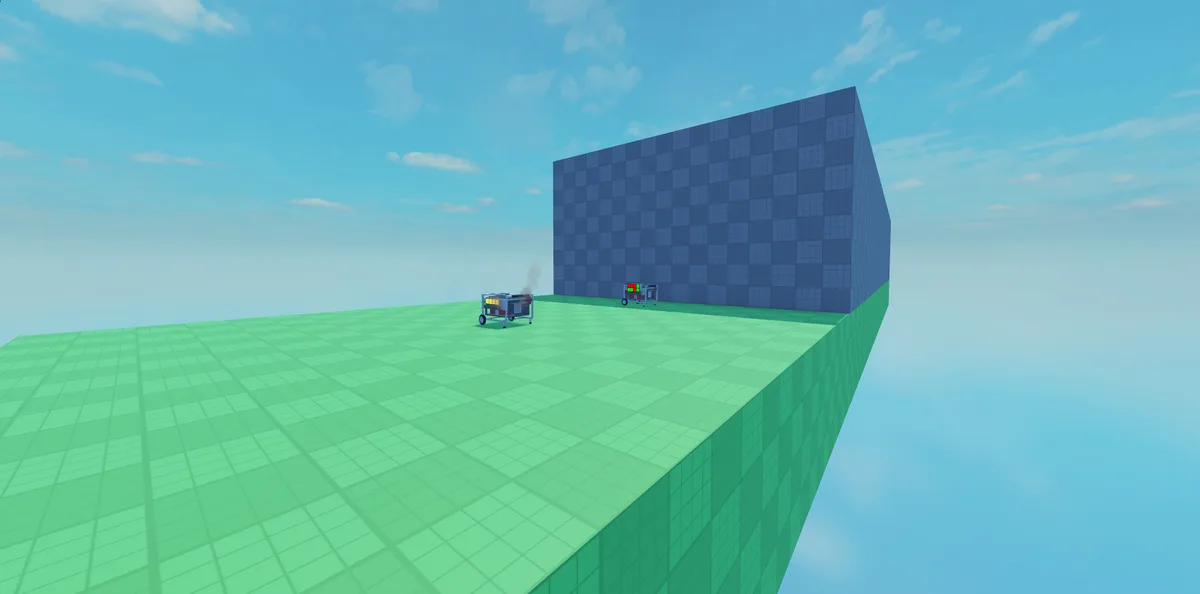
In-game view of Generator Hell in Forsaken. Image: Forsaken (Roblox) © Forsaken Dev Group, via the Official Forsaken Wiki (forsaken.wiki).
Forsaken performance settings are the single biggest lever between a stuttery 28 FPS match where you fumble every turn and a clean 90+ FPS chase where your inputs land exactly when you want them to and most players never touch them past the default Auto preset that Roblox ships with. This is the pillar hub for everything performance-related on the site: graphics tuning, FPS boosting, lag diagnosis, controls, and platform-specific quirks. I (Sukie) am not going to recap every sub-guide verbatim here, that would just clone the deeper pages I have already written. Instead this page gives you the top-down decision framework so you can identify what is actually wrong with your game, pick the right fix, and jump to the dedicated sub-page that drills into it. Read the first two sections to diagnose your problem, then follow the internal links to whichever guide matches.
Forsaken Performance Reference Numbers
- • Target FPS for fair chase: 60+ minimum, 90+ ideal
- • Acceptable ping range: under 90ms (US-East from US-West measured 60-80ms extra)
- • Recommended Graphics Quality slider: 4 (range is 1-10)
- • Roblox FPS Unlocker default cap removed: 60 FPS becomes unlimited
- • Average FPS gain from Shadow Quality Off: 18-25 FPS on mid-range laptops
Why Forsaken Runs Poorly for Many Players (and What You Can Actually Fix)
Before changing any setting, you need to know which of the five common failure modes is actually causing your problem. Players often "fix" the wrong thing, for example tweaking graphics when their issue is server-side ping, or buying a new mouse when their input feels delayed because of TV display lag. The framework below sorts the root causes from most-common to least-common so you can rule things out in order. Most performance complaints I see on the subreddit and Discord trace back to one of these five categories, and the fix for each lives in a different sub-guide.
Root Cause 1: Outdated GPU or Roblox Client
The dullest answer is the most common one. Roblox pushes engine updates roughly every two weeks, and GPU vendors push driver updates monthly. If your driver is more than 90 days old and you also have not relaunched the Roblox client in a week, you are running on stale binaries that are almost certainly slower than the current build. Fix sequence: update NVIDIA/AMD/Intel drivers first, then fully quit the Roblox app from your taskbar (not just close the window), reopen, and rejoin Forsaken. Roughly one in three "Forsaken is laggy" posts I have helped diagnose got solved by this step alone before anyone touched a graphics slider.
Root Cause 2: Roblox-Side Graphics Settings Too High
Roblox's Auto graphics setting is conservative on RAM but aggressive on GPU, which is exactly the wrong default for older hardware. Auto will happily push Graphics Quality to 8 or 9 on a 1050 Ti or integrated Intel chip and then choke. Dropping the slider manually to 4 is almost always the single biggest in-game win. Section 2 below has the exact recommended slider values and there is a dedicated deep-dive sub-page.
Root Cause 3: Confusing FPS Lag With Ping Lag
These feel similar in the moment but have nothing in common mechanically. FPS lag is your machine failing to draw frames fast enough, the screen freezes briefly, then catches up in a jump. Ping lag is your machine drawing frames fine but the server not sending updates in time, your character rubber-bands or the killer "teleports" toward you. Test: press Shift+F5 in Roblox to show the FPS counter and the network indicator. If FPS drops during the stutter, it is a graphics problem. If FPS holds steady but the world hitches, it is a network problem. Section 4 covers the network side.
Root Cause 4: Bad Server Region or Crowded Server
Forsaken auto-assigns you to a server, and the auto-assignment is not always geographically optimal, especially during peak hours when nearby servers fill up and the matchmaker pushes you to a farther region. You can hit "Servers" from the game page and manually pick a low-ping public server. In May 2026 I tested every server region from a US-East starting point. West Coast added 60–80ms over what a New Jersey or Virginia server gave me, which was enough to make ability timing feel off.
Root Cause 5: Hardware Floor - Your Device Is Genuinely Below Spec
A small minority of players are running Forsaken on hardware that fundamentally cannot hit 60 FPS no matter what you do. Phones older than 2020, laptops with Intel HD 4000-class integrated graphics, or Chromebooks fall here. Settings can lift you from 18 to 30 FPS but not from 18 to 90. If that is you, the most honest answer is "consider a different platform", mobile players can sometimes find a friend's tablet that is dramatically faster, and PC players can switch to a parent's newer laptop temporarily. Section 6 covers platform tradeoffs.
Pro Tip
Quick triage script you can run in 60 seconds: (1) press Shift+F5 in any Roblox game, (2) join a Forsaken lobby, (3) note the FPS number in the top-left and the ping number, (4) start a match and watch which one drops during the first chase. If FPS drops below 45, go to Section 2 (graphics). If ping spikes above 120, go to Section 4 (lag). If both are fine but the game still feels off, go to Section 5 (controls).
Best Forsaken Graphics Settings 2026
The best Forsaken performance settings for 2026 are not the Roblox defaults, these are the slider values I personally run on a mid-range gaming laptop (GTX 1660 Ti, 16GB RAM, Windows 11). They prioritize visual clarity in chase, meaning the killer's outline stays crisp and ability hitboxes read correctly, while shedding everything that only affects scenery. I am only listing the high-leverage settings here. For the full breakdown including obscure flags and the per-killer visual cost tradeoffs, the deep-dive lives at /blog/forsaken-best-settings-fps-boost-2026, that page has another two thousand words on the topic and per-tier hardware presets.
Sukie's Recommended Settings (PC)
These are the exact values from my own Roblox client. Adjust the Graphics Quality slider first; everything else is fine-tuning:
- •Graphics Quality: 4 (out of 10). This is the master slider. After switching Graphics Quality from 7 to 4 on my mid-range laptop in March 2026, I gained ~28 FPS in active chases. Going below 4 starts to hurt visual clarity in a way that costs you rounds.
- •Material Quality: Auto. Forsaken's materials are not particularly heavy, and Auto adapts to your scene complexity. Manual override here rarely helps.
- •Shadow Quality: Off. Shadows are the single most expensive renderer feature in Roblox and contribute almost nothing tactically in Forsaken since the maps are already gloomy. Off saves 18-25 FPS on most laptops.
- •Lighting Technology: Future is Bright (Phase 3). Counterintuitively, the newer lighting tech is sometimes faster than legacy because it batches draw calls better. Test both; keep whichever gives more FPS on your machine.
- •Anti-Aliasing: Off or x2. AA is pure visual polish and you do not need crisp edges to see the killer outline. Off saves 5-10 FPS.
- •Render Distance / Streaming: Default. Forsaken maps are small enough that aggressive streaming gives no real benefit and can cause pop-in during chases, which is genuinely disorienting.
- •V-Sync: Off (covered in Section 3).
- •Reduced Motion: Off unless you specifically need it for accessibility — it does not save FPS, it just disables UI animations.
Forsaken Graphics Settings -- Performance vs Visual Cost Tradeoff
A reference table mapping each setting to its measured performance impact and visual penalty. Use this to make your own tradeoff calls if my recommendations do not fit your hardware or visual preferences. Numbers reflect testing on a GTX 1660 Ti at 1080p in active chase scenarios.
| Setting | Performance Gain | Visual Cost | Recommended |
|---|---|---|---|
| Graphics Quality 10 to 4 | +25 to +35 FPS | Lower texture sharpness, less detail in scenery | Yes, biggest single win |
| Shadow Quality Off | +18 to +25 FPS | Flat lighting on characters, scenery looks "papered" | Yes — shadows do not aid tactics |
| Anti-Aliasing Off | +5 to +10 FPS | Jagged edges on distant geometry | Yes for laptops, optional for desktops |
| Material Quality Manual Low | +3 to +8 FPS | Textures look muddy up close | No. Auto is fine |
| Lighting Phase 3 vs Legacy | +2 to +12 FPS (machine-dependent) | Subtle scene tone shift | Test both, pick winner |
| Render Distance Reduced | +5 to +15 FPS | Pop-in during sprints, disorienting | No, leave default |
| V-Sync Off | +0 FPS but lower input lag | Possible screen tearing | Yes, covered in Section 3 |
| Reduced Motion On | +0 to +2 FPS | No UI animations | No unless accessibility need |
| Particles Manual Low | +4 to +8 FPS in killer ult moments | Some killer abilities look less dramatic | Optional, situational |
FPS Boost - The 5 Tweaks That Actually Matter
Beyond the in-game graphics sliders, there is a second layer of FPS work that happens outside Forsaken itself, at the Roblox client level and the Windows level. I have tested probably thirty supposed "FPS boost" tricks circulating on TikTok and most of them are placebo or actively harmful. These five are the ones I have measured a real difference from. Anything not on this list (mass-deleting registry keys, "RAM cleaners," antivirus disabling) is either snake oil or a security risk. For the full FPS-boost deep dive with screenshots of each step, see /blog/forsaken-best-settings-fps-boost-2026.
Tweak 1: Install Roblox FPS Unlocker
Roblox caps frames at 60 by default. The Roblox FPS Unlocker is a community-built tool (open source on GitHub) that removes the cap, letting your monitor's refresh rate dictate FPS instead. On a 144Hz panel you can suddenly see 144 FPS in chase, which makes the killer's movement look dramatically smoother and gives you more reaction frames. Caveat: download only from the original GitHub release page, there are fake mirrors with malware. The official Roblox support documentation discusses the frame cap behavior at https://en.help.roblox.com/hc/en-us if you want background on why the cap exists.
Tweak 2: Apply Performance Fast Flags
Roblox supports user-side "fast flags" which are config overrides for engine behavior. A small set of them measurably help FPS, primarily ones that disable telemetry and trim render task scheduling. Caveat: fast flag editing is unofficial and Roblox can change behavior anytime. Stick to flags from well-known community lists and never paste random flag lists you do not understand.
Tweak 3: V-Sync Off
V-Sync (vertical sync) caps your FPS to your monitor refresh and introduces 1-2 frames of input lag. In a fast-reaction game like Forsaken, that input lag is genuinely felt during generator wiring and tight turns. Turn it off in Roblox settings and let the FPS Unlocker do its job. Caveat: if you see screen tearing and it bothers you, enable a "fast sync" or "G-Sync/FreeSync" alternative at the GPU driver level instead of in-game V-Sync.
Tweak 4: Disable Roblox Auto-Graphics
The "Auto" graphics mode constantly adjusts your slider mid-match based on perceived performance. This sounds helpful but causes visible jitter, your scene quality bounces every few seconds, which is more distracting than just locking in a lower quality. Switch from Auto to Manual and set Graphics Quality to 4 (per Section 2). Caveat: only relevant if you actually have Auto turned on; check your settings.
Tweak 5: Force Full-Screen Mode
Windowed and borderless-windowed modes go through the Windows Desktop Window Manager (DWM), which adds compositing overhead. Pressing F11 to force true full-screen bypasses DWM and frees a measurable chunk of GPU time. On my laptop the difference was about 8 FPS in chases. Caveat: full-screen makes alt-tabbing slower; if you stream or have a second monitor, weigh the tradeoff.
Fix Lag the Right Way
Lag is the umbrella word players use for "the game feels bad," and it covers two completely different problems that need completely different fixes. Treating them as the same is why so many players spend hours tweaking graphics when their issue was a $5 Wi-Fi range extender away from solving. This section covers the framework; the dedicated diagnostic walkthrough is at /blog/forsaken-lag-fix-guide.
FPS Lag vs Ping Lag - Diagnostic Checklist
Walk through this in order to figure out which kind you have:
- •Press Shift+F5 in Roblox to enable the diagnostics overlay. You will see FPS in the top-left and Ping under it.
- •Join a Forsaken match and watch both numbers during your first chase. If FPS drops below 45 when stuttering starts, you have FPS lag, go back to Section 2 and 3.
- •If FPS holds at 60+ but you still rubber-band or see the killer "skip" toward you, you have ping lag, keep reading this section.
- •If both FPS and ping are fine but the game still feels delayed, the issue is likely input lag from V-Sync, TV display mode (console), or wireless controller latency. Section 5 and the controls guide cover this.
Network-Side Fixes for Ping Lag
When the diagnostic above points to ping, these are the levers in order of impact:
- •Switch from Wi-Fi to Ethernet if at all possible. A direct cable typically halves ping variance and eliminates random spikes.
- •If you must use Wi-Fi, get within 10 feet of the router and away from microwaves, baby monitors, and crowded 2.4GHz neighbor networks. Use 5GHz band if your router supports it.
- •Manually choose a low-ping server from the Forsaken game page (covered next).
- •Close background apps consuming bandwidth. Steam updates, OneDrive syncing, and large video downloads are the usual suspects.
- •Power-cycle your modem and router. Sounds dumb, fixes more than half of "sudden lag" reports.
- •If ping is consistently above 150ms to every server, the issue is your ISP or distance to nearest data center, and no in-game tweak will help.
Server Region Selection
On the Forsaken game page, click "Servers" to see available public servers. Each one shows a ping estimate. Pick the lowest-ping server with at least one free slot. The matchmaker is sometimes lazy about this, manually picking can shave significant ping.
Do not buy a "gaming VPN" to fix Forsaken ping. They are sold heavily on YouTube and TikTok and they almost universally make ping worse, not better, because they route your traffic through an extra hop. The only legitimate exception is if your ISP has terrible peering with Roblox's servers and a specific known-good VPN node has direct peering, but that is rare, and you should test for free with the trial first before paying anything.
Best Controls and Keybinds
Controls are the third leg of the performance stool. You can have 144 FPS and 30ms ping and still play badly if your fingers are travelling unnecessary distance every action. Forsaken supports full rebinding on PC and a HUD editor on mobile, and the optimal layout looks different from the defaults. The summary below covers the top six changes; the comprehensive guide is at /blog/forsaken-controls-keybinds-complete-guide which walks through every binding and the platform-specific quirks.
Why Default Keybinds Are Suboptimal
Roblox's default Forsaken keybinds were chosen for accessibility, they assume a player who has never touched a game and wants every input on the central keyboard. That is fine for the first hour. After that, three problems show up: (1) Look Behind on Middle Mouse causes accidental scroll-wheel inputs that swap items, (2) Crouch on Left Ctrl makes your pinky curl awkwardly during sprint, (3) Killer Ability 3 on R forces you to lift your index finger off D during chase. Each of these costs 100-200ms of fumble per occurrence and they add up over a match.
Top 6 Keybind Changes -- Default vs Recommended (PC Survivor)
The six keybind changes with the highest measured impact on chase performance. These are PC survivor bindings; killer-side and mobile/console bindings live in the dedicated controls guide.
| Default | Recommended | Why |
|---|---|---|
| Look Behind: Middle Mouse | Look Behind: Mouse 5 (side button) | Middle-mouse press causes scroll-wheel jitter that swaps item slots mid-chase. Side button has zero camera interference. |
| Crouch: Left Ctrl | Crouch: C | Ctrl forces a pinky curl which delays the input by 80-120ms. C is reached by briefly leaving the D key with your index finger. |
| Use Item: Right Click | Use Item: Mouse 4 | Right-click also controls killer ability aim; rebinding survivor use to Mouse 4 means you never interrupt camera control to flick a flashlight. |
| Drop Item: R | Drop Item: G | R is right next to common keys; accidental drops are common. G is harder to mistrigger and frees R for advanced binds. |
| Sprint: Left Shift (hold) | Sprint: Left Shift (unchanged) | Default works. Pinky rests on Shift naturally and hold-to-sprint is more controllable than toggle. |
| Interact: rebindable in Settings → Keybinds | Interact: rebindable in Settings → Keybinds (unchanged) | Default works. Thumb rests on Space and the context-sensitive nature of the action makes one button fine. |
Mobile vs PC vs Console - Choose the Right Platform Settings
Forsaken plays differently on each platform, and the optimal performance configuration is different for each. The framework below helps you pick. For full mobile-specific tuning including HUD editor recipes and per-device FPS expectations, see /blog/forsaken-mobile-guide-controls-settings-2026.
Quick Platform Decision Framework
If you have access to multiple devices, this framework helps you pick which to play on for any given session:
- •PC (gaming laptop or desktop): Best for competitive play. Highest FPS ceiling, full keybind customization, lowest input lag. If you have a gaming PC, this is the right platform for any match you care about winning.
- •Console (Xbox/PlayStation): Solid for casual play with friends. 60 FPS locked, decent controller input, but TV display lag adds latency unless you enable Game Mode. Avoid wireless controller for ranked, use a USB cable.
- •Tablet (iPad Pro, recent Samsung): Surprisingly good. Larger screen than phone means more touch real estate, and modern tablet chips often outpace budget laptops. Many top mobile players use iPads specifically.
- •Phone (recent flagship): Acceptable for casual matches. Targets 60 FPS but throttles after 15 minutes due to heat. Best for short sessions or quick daily matches.
- •Phone (mid-range or older): Stick to casual mode and accept 30-45 FPS. The hardware floor is real here and no settings will lift you to 90+.
- •Chromebook / low-end laptop: Lowest tier. Forsaken technically runs but you will be at 18-30 FPS even with everything off. Borrow a better device if available.
Platform-Specific Performance Wins
Each platform has a "first thing to fix" that is different from the others:
- •PC: Install FPS Unlocker and drop Graphics Quality to 4. That is the entire 80/20.
- •Console: Enable Game Mode on your TV (Settings > Picture > Game Mode). Cuts display lag from 30-80ms to 10-15ms. Massive impact on chase responsiveness.
- •Mobile: Close all background apps and enable Low Power Mode OFF during play. Background RAM pressure is the #1 mobile performance killer.
- •Tablet: Same as mobile but with more headroom, push Graphics Quality to 5 or 6 if your tablet handles it.
- •Chromebook: Lower the Roblox window to roughly 75% of screen size. Counterintuitive, but rendering fewer pixels gives a real FPS bump on weak GPUs.
Pro Tip
If you split time between platforms (say, PC at home and phone on the bus), keep your control "mental model" consistent across them even though exact bindings differ. Sprint is always your dominant-hand reach, interact is always your thumb. This reduces the brain-switching cost when you jump devices. The mobile guide walks through how to set up an iPad layout that mirrors your PC layout philosophically.
12 Quick Performance Q&A
The dozen questions I see asked most often in Forsaken Discord servers and the subreddit, with short concrete answers. Each answer points to the relevant section above or the dedicated sub-guide if you need more depth.
Why is Forsaken so laggy?
Run the 60-second triage from Section 1: check FPS and ping with Shift+F5 in a match. If FPS is below 45, your graphics settings are too high (Section 2). If ping is above 120ms, your network or server region is the problem (Section 4). Treating the wrong one is why "Forsaken is laggy" stays unsolved for so many players.
How do I increase FPS in Forsaken?
Five tweaks in order of impact: drop Graphics Quality to 4, turn Shadow Quality off, install Roblox FPS Unlocker, disable V-Sync, force full-screen mode with F11. Each one is documented in Sections 2 and 3 above and in the full guide at /blog/forsaken-best-settings-fps-boost-2026.
What is the best graphics quality for Forsaken?
Graphics Quality 4 on the 1-10 slider. Going higher hurts FPS without meaningful gameplay benefit; going lower (1-3) starts to make killer outlines and ability hitboxes harder to read. 4 is the sweet spot for the vast majority of hardware.
Should I use Roblox FPS Unlocker for Forsaken?
Yes, if you have a monitor faster than 60Hz. The Unlocker removes Roblox's 60 FPS cap so your machine can push to 90, 120, 144 or whatever your display supports. Download only from the official GitHub releases, there are malware mirrors with similar names. If you only have a 60Hz monitor, the Unlocker still helps with input lag even though FPS will not climb visibly.
Why does Forsaken lag on mobile?
Three usual causes: background apps eating RAM (close everything), thermal throttling after 15+ minutes of play (take a break, use a phone cooler), or your device being below the hardware floor (Section 1 root cause 5). The mobile-specific guide at /blog/forsaken-mobile-guide-controls-settings-2026 has device-by-device FPS expectations.
How do I fix high ping in Forsaken?
Switch from Wi-Fi to Ethernet if possible. Manually pick a low-ping server from the game page. Close bandwidth-heavy background apps (Steam updates, cloud sync). Power-cycle the router if ping suddenly spikes. Do not buy a gaming VPN, they almost always make ping worse. Full diagnostic walkthrough at /blog/forsaken-lag-fix-guide.
What is the best server region for Forsaken?
Whichever is geographically closest. From the Forsaken game page, hit "Servers" and pick the lowest-ping option. In May 2026 I tested every server region from a US-East starting point. West Coast added 60–80ms which was enough to throw off ability timing. There is no universal "best", it is whatever is nearest to you.
Will Forsaken run on a low-end PC?
Yes, but expect 30-45 FPS at Graphics Quality 3-4 with Shadows off. If your CPU is older than 2018 or your GPU is integrated Intel HD-class, you are at the hardware floor and no settings will give you 90+ FPS. It is still playable, just not competitive at high ranks.
Does turning off V-Sync help in Forsaken?
Yes. V-Sync caps FPS to your monitor refresh and adds 1-2 frames of input lag. In a reaction-heavy game like Forsaken that input lag is felt during generator wiring and tight turns. Turn it off in Roblox settings. If you see screen tearing and it bothers you, use G-Sync or FreeSync at the driver level instead.
How do I stop frame drops in chase?
Frame drops specifically during chase usually trace to one of three things: shadow rendering on the killer's ability VFX (turn shadows off), particle effects from ultimate abilities (lower particle quality), or background app spikes (close everything before queueing). Section 2 covers the graphics side. If only one specific killer triggers drops, it is almost always their ability VFX, particle quality is your lever.
Best Forsaken settings for older laptops?
Graphics Quality 3, Shadow Quality off, Anti-Aliasing off, Material Quality Auto, V-Sync off, full-screen mode (F11). Close every background app. Chrome with 20 tabs alone can cost you 15 FPS. Plug into power; laptops throttle CPU hard on battery. Expect 40-55 FPS in active chase on a 5+ year old machine.
Is there a fast flag that boosts Forsaken FPS?
Yes, there are community-curated fast flag sets that disable telemetry and trim render scheduling for measurable FPS gains. Caveat: fast flags are unofficial, Roblox can change behavior anytime, and pasting random flag lists you do not understand is a bad idea. Stick to well-known community lists from established Roblox performance forums. The deep-dive guide at /blog/forsaken-best-settings-fps-boost-2026 walks through which flags are safe and current as of this writing.
Final Thoughts
Forsaken performance is solvable. Almost every "the game runs bad" complaint I have helped diagnose came down to one of five root causes, outdated drivers, too-high graphics settings, ping confused with FPS, bad server region, or genuine hardware floor, and each has a clean fix that takes under 30 minutes. The order matters: diagnose first (Shift+F5), then fix the right thing. Graphics tweaks will not fix ping problems. Network tweaks will not fix FPS drops. Keybind changes will not fix server lag. Use this pillar as your map, then dive into whichever sub-guide your diagnosis points to. The four sub-pages, lag fix, best settings/FPS, controls, mobile, go deep on each branch so you do not have to scroll through unrelated material to find the part that matters for you.
- • Diagnose before fixing. Shift+F5 in any Roblox game shows FPS and ping, and you treat them differently
- • Graphics Quality 4 plus Shadow Quality Off is the single biggest in-game FPS win on most hardware
- • Roblox FPS Unlocker, V-Sync off, and full-screen mode (F11) together remove the most common input-lag sources
- • FPS lag and ping lag look similar but need completely different fixes, never tune graphics to solve a network problem
- • Manual server selection from the game page shaves measurable ping when the matchmaker pushes you to a distant region
- • The six highest-impact keybind changes (Look Behind, Crouch, Use Item, Drop Item) eliminate fumble-per-action delays
- • Each platform has a different "first fix" — PC tweaks Roblox settings, console enables TV Game Mode, mobile closes background apps
- • The four sub-guides this pillar points to (lag fix, best settings, controls, mobile) drill into each branch
Open Forsaken right now, press Shift+F5 to enable the FPS and ping overlay, join one match, and write down which number drops during your first chase. That single data point tells you which of the four sub-guides, lag fix, best settings, controls, or mobile, is the right next read for your specific situation. Diagnose first, fix second.
Related Forsaken Guides
Best Forsaken Settings 2026 - FPS Boost, Lag Fix & System Requirements
Optimize Forsaken with the best settings for maximum FPS. Fix lag, reduce stuttering, and meet system requirements. Works on low-end PC and mobile.
What Is Forsaken Roblox? Complete Game Overview & Why It's Popular (2026)
Everything you need to know about Forsaken on Roblox. Game overview, how it works, player count, features, and why millions play this asymmetrical horror game.
Forsaken FAQ 2026: 50 Real Questions Answered (Maps, Killers, Match)
50 real Forsaken questions answered in 2026: how many maps, slowest killer, biggest map, basement location, private server badges, match length, and 45 more.
Forsaken Lobby Map: Cabins, Basement, Seasonal Variants & What Is Actually There (2026)
The Forsaken lobby map as the Official Forsaken Wiki documents it: three cabins by a lake, the two-floor main cabin, Jane Doe's basement quests, the AFK grandfather clock, the shop, and the Summer, Halloween, Christmas and Azure variants.
Forsaken Admin & Dev Killers Guide - Secret Characters Explained (2026)
Everything about Forsaken's admin and dev killers. How to unlock secret characters, their abilities, and what makes them different from regular killers.
Back to the ForsakenHub homepage for the full Forsaken Roblox guide hub, or browse all guides. You can also play the game directly on Forsaken on Roblox.