Forsaken Mobile Guide 2026 - Touch Controls, Settings & Tips
Complete guide to playing Forsaken on mobile. Touch controls layout, best mobile settings, performance tips, and strategies for phone and tablet players.
Over 60% of Forsaken Roblox players use mobile devices, but most never optimize their controls or settings for competitive play. Playing Forsaken on a phone or tablet is a completely different experience from desktop. Touch controls introduce input delay, screen size limits your field of view, and default settings are tuned for casual play rather than survival. This guide covers everything mobile players need to know: optimal control layouts, camera sensitivity tuning, performance settings that eliminate frame drops during chases, and mobile-specific techniques that desktop players cannot replicate. Whether you are on an iPhone, Android phone, or iPad, these adjustments will close the gap between you and keyboard-and-mouse players. Check out our full killer roster at /forsaken-killers to understand what you are up against on mobile.
Mobile Performance Stats
- • Forsaken publishes no platform escape statistics; the mobile gap is in input precision, not in rules
- • Every rule is identical on mobile: 4-minute clock, five generators, 26 run speed, 100 stamina
- • Input Delay Reduction: 40-60ms with layout changes
- • FPS Improvement: +15-25 FPS with graphics tweaks
- • Camera Sensitivity Sweet Spot: 55-70% for most devices
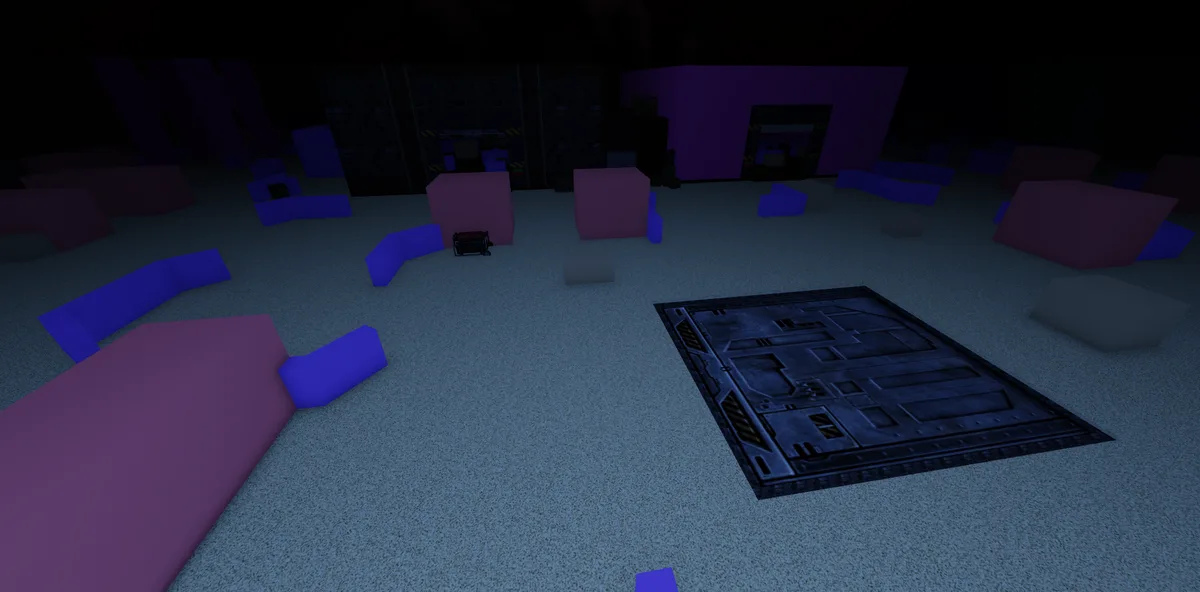
In-game view of Area 51 in Forsaken. Image: Forsaken (Roblox) © Forsaken Dev Group, via the Official Forsaken Wiki (forsaken.wiki).
Essential Roblox Settings for Forsaken Mobile
Before you even load into a Forsaken match, your Roblox client settings determine whether you are fighting the game or fighting the killer. Most mobile players never open the settings menu, and that single oversight costs them 10-15 FPS and noticeable input lag. These adjustments take two minutes and make an immediate difference.
Graphics Quality Settings
Graphics quality is the single biggest factor in mobile performance. Forsaken is a visually demanding Roblox game with dynamic lighting, particle effects, and large map geometry. Here is how to configure it:
- •Set Graphics Quality to Manual (not Auto): Auto mode constantly adjusts quality mid-match, causing micro-stutters during chases when the game shifts rendering quality. Manual mode keeps your frame rate consistent so your muscle memory stays reliable.
- •Set Quality Level to 3-4 on phones, 5-6 on tablets: Levels 1-2 remove too many visual cues (shadow tells, particle effects from killer abilities like Cataclysm puddles). Levels 7+ cause frame drops on most mobile hardware. The 3-4 range on phones preserves gameplay-critical visuals while maintaining 30+ FPS.
- •Disable Shadows if your device is older than 2023: Shadows in Forsaken provide minimal gameplay information compared to the performance cost. On older devices, disabling shadows can recover 8-12 FPS, which is the difference between smooth and choppy gameplay during a killer chase.
- •Turn off Camera Shake effects: Camera shake during hits, generator explosions, and killer abilities creates disorientation on small screens. Desktop players can absorb this on a 24-inch monitor, but on a 6-inch phone screen, shake makes it nearly impossible to track the killer post-hit.
- •Enable Reduced Motion if available: This setting minimizes particle density without removing gameplay-relevant effects, giving you cleaner visual information during chaotic moments like final minute.
- •Restart Roblox after changing settings: Mobile Roblox sometimes caches old rendering settings until a full restart. Always close and reopen the app after making graphics changes to ensure they take effect properly.
Camera and Sensitivity Configuration
Camera sensitivity is where most mobile players either over-correct or never adjust at all. The goal is finding the range where you can do a full 180-degree turn in a single thumb swipe without overshooting:
- •Camera Sensitivity between 55-70%: This range lets you perform a full 180 turn with one deliberate swipe across roughly two-thirds of your screen width. Below 55% you cannot look behind you fast enough during chases. Above 70% you overshoot constantly and lose the killer in your camera spin.
- •Use "Classic" camera mode, not "Follow": Follow mode auto-adjusts your camera angle, which conflicts with manual camera control during loops. Classic mode gives you full control, which is essential for tracking killers around corners and tight loops on maps like Haunted Mansion and Horror Hotel.
- •Set Camera Distance to maximum: On mobile, your smaller screen already limits peripheral vision. Maximum camera distance partially compensates by pulling the view back, letting you see more of the environment. This is especially critical on open maps like Farm and SFOTH where early killer detection determines chase outcomes.
- •Lock first-person mode OFF: Some players accidentally toggle first person on mobile. First person in Forsaken is a massive disadvantage because you lose peripheral awareness. Always play in third person.
- •Test sensitivity in a private server before public matches: Spend 5 minutes running around the map doing 180 turns, checking behind you, and practicing tight corner turns. Adjust by 5% increments until turns feel precise without overshooting.
- •Tablet users should use slightly lower sensitivity (50-60%): Tablets have more screen surface area for thumb travel, so you can afford lower sensitivity while still achieving fast turns. The extra precision helps with wiring generator puzzles and tight turns.
Device-Specific Settings Cheat Sheet
Use this table to quickly configure your device. These are tested baseline settings — adjust from here based on personal preference.
| Setting | iPhone (2022+) | iPhone (Older) | iPad / Tablet | Android Mid-Range | Android Flagship |
|---|---|---|---|---|---|
| Graphics Quality | 4-5 | 2-3 | 5-6 | 3-4 | 5-6 |
| Camera Sensitivity | 60-65% | 60-65% | 50-55% | 55-65% | 55-65% |
| Shadows | On | Off | On | Off | On |
| Camera Shake | Off | Off | Off | Off | Off |
| Camera Distance | Max | Max | Max | Max | Max |
| Camera Mode | Classic | Classic | Classic | Classic | Classic |
| Expected FPS | 45-60 | 25-35 | 50-60 | 30-45 | 50-60 |
| Render Distance | Medium | Low | High | Medium | High |
Optimal Touch Control Layout
The default Roblox mobile control layout was designed for general gameplay, not for a survival horror game where split-second reactions determine life or death. Optimizing your control layout removes the biggest disadvantage mobile players face: the time it takes to move your thumbs between actions.
Movement and Camera (Two-Thumb Foundation)
Your left thumb controls movement and your right thumb controls camera. This cannot change, but you can optimize how they work together:
- •Use the Dynamic Thumbstick option for movement: The dynamic thumbstick appears wherever your left thumb touches the screen, instead of being locked to a fixed position. This means you never have to "find" the joystick during panic moments, it is always exactly where your thumb lands.
- •Keep your right thumb in the center-right of the screen at rest: This position lets you swipe left, right, up, or down with equal reach. If your thumb rests too high or too low, you limit your camera range in one direction, creating blind spots during chases.
- •Practice the "alternating priority" technique: During generator repair, prioritize left thumb (movement readiness) over camera control. During chases, prioritize right thumb (camera tracking) over precise movement. This mental switch reduces input conflicts where both thumbs compete.
- •On tablets, use a wider thumb spacing: Place your movement thumb further left and camera thumb further right to maximize the swipe range for both inputs. Tablet players who cluster their thumbs in the center lose the main advantage of a larger screen.
- •Avoid crossing your thumbs: If you need to look far left while moving right, briefly stop movement rather than crossing your thumbs. Crossed thumbs create a 200-300ms recovery delay that killers exploit.
- •Consider a phone grip or controller mount: Physical accessories that give your phone more surface to hold reduce hand fatigue during long sessions and prevent accidental screen touches from your palms.
Action Buttons and Interaction Zones
Forsaken requires you to interact with generators, items and abilities. Each interaction has a screen button, and their placement matters:
- •Move the interaction button to the upper-right quadrant: The default placement conflicts with camera control. Moving it higher means you can tap to interact without removing your camera thumb from its natural resting position.
- •Resize the interaction button to be 15-20% larger than default: the cost of a mis-tap on mobile is exiting a generator puzzle, which regenerates its wires. A larger button gives you a bigger tap target during the panic of a chase, reducing missed inputs significantly.
- •Place the sprint button where your left thumb naturally reaches: Sprint should be instantly accessible from your movement thumb position. On most phones, this means the lower-left area directly above or beside the movement zone.
- •Keep the generator grid unobstructed: when wiring a puzzle, the 6x6 Numberlink fills the screen, and a thumb resting over it hides dots. Make sure your control layout does not place buttons over the skill check area, which is typically center-screen. Overlapping buttons cause failed skill checks because your tap registers on the button instead of the check.
- •Item use buttons should be on the right side: Items like flashlights and medkits require activation during intense moments. Right-side placement lets your index finger or right thumb reach them without sacrificing camera control.
Pro Tip
If you play on a phone smaller than 6.1 inches, consider switching to a tablet for Forsaken specifically. Tablet players have an easier time than phone players purely from screen size and thumb room on the generator grid; the game publishes no statistics to quantify it. Check out our map guides at /forsaken-maps to learn which maps are hardest on small screens.
Mobile-Specific Chase Techniques
Mobile players cannot replicate every desktop technique, but mobile controls offer a few unique advantages that desktop players lack. Understanding both your limitations and your strengths is key to competitive play on touch devices.
Techniques That Work Better on Mobile
Some Forsaken techniques are actually easier on mobile than on keyboard and mouse:
- •360 spins at corners: the continuous analog input of a touchscreen joystick creates smoother 360 rotations than keyboard strafing. Practice spinning your movement thumb in a tight circle while rounding a corner to bait killer swings; the smooth analog movement makes 360s more fluid on mobile.
- •Variable movement speed: The analog joystick lets you walk at partial speed (not just walk or sprint), which is useful for stealth approaches and subtle position adjustments near corners that digital keyboard input cannot replicate.
- •Quick camera whips for checking behind: A fast thumb swipe across the screen creates a nearly instant 180-degree camera rotation that is faster than most mouse sensitivity settings. Use this during straight-line sprints to check killer distance.
- •Smooth cornering during loops: Analog stick input creates curved movement paths around corners instead of the sharp digital turns from WASD keys. Curved paths maintain more speed through corners, making your loops slightly tighter on mobile.
Techniques That Require Adaptation on Mobile
Several desktop techniques need modified approaches on mobile devices:
- •Looping while looking behind: On desktop, players can hold a movement key and freely spin the camera to watch the killer. On mobile, camera rotation requires your right thumb, which means you cannot simultaneously tap interaction buttons. Solution: do quick camera checks in short bursts rather than continuous rear-view monitoring.
- •Fast ability use: desktop players press a single key for an Alt Ability, while mobile players have to reach for the on-screen button. Mobile players must tap a button that might not be perfectly placed. Solution: pre-position your right thumb near the ability button as a chase develops, accepting slightly worse camera control for the last 2-3 seconds of the approach.
- •Flashlight saves: Flashlight aiming on mobile requires precise camera control while a teammate is being carried. This is the hardest mobile technique because you need your right thumb for both camera aim and flashlight activation simultaneously. Solution: pre-aim your camera before the killer picks up, then tap the item button at the exact timing without adjusting aim.
- •Quick item switching: Switching between items requires menu interaction on mobile that desktop players handle with number keys. Solution: commit to a single item per match rather than trying to juggle multiple items. A medkit or flashlight, pick one strategy and optimize for it.
- •Precise generator wiring: dragging wires accurately on mobile is harder than with a mouse, especially on 10- to 12-pair layers. Solution: focus on hitting Good skill checks consistently rather than attempting Great checks. The small bonus from Great checks is not worth the risk of missing entirely on a touchscreen.
- •Multi-tasking during revive: Revive teammates while watching for the killer requires camera control and button taps simultaneously. Solution: commit to the revive and rely on your teammates to alert you about killer approach rather than trying to monitor everything yourself.
Common Mobile Mistakes That Cost Games
The three most common mobile mistakes are: (1) playing with default settings and never adjusting graphics or sensitivity, which costs you 10+ FPS and inconsistent camera control; (2) using Follow camera mode, which fights your manual camera input during loops and creates unpredictable angles at the worst moments; and (3) trying to replicate desktop techniques exactly instead of adapting them for touch input. Mobile is a different platform — embrace its strengths (analog movement, fast camera swipes) and work around its limitations (button conflicts, smaller screen) rather than pretending you are on a keyboard.
Performance Optimization by Device
Different devices have different bottlenecks. Knowing what limits your specific device helps you make the right trade-offs between visual quality and performance. Forsaken is one of the more demanding Roblox games, and maintaining stable FPS is more important than pretty graphics when a killer is chasing you.
iPhone and iOS Optimization
iOS devices generally provide more consistent performance due to hardware-software optimization, but they still require tuning:
- •Close all background apps before launching Roblox: iOS manages memory aggressively, and background apps force Roblox to compete for RAM. On devices with 4GB RAM or less (iPhone 12 and older), this is critical, background apps can steal 15-20% of available memory.
- •Disable Low Power Mode during gameplay: Low Power Mode throttles CPU and GPU performance by up to 40%, which directly impacts FPS in Forsaken. Plug in your device or accept battery drain during gameplay sessions.
- •Enable Do Not Disturb: Notification banners cause micro-stutters because the system pauses rendering to display them. A notification while wiring a generator can cost the whole layer, because tapping away exits the puzzle.
- •Keep your device cool: iPhones thermal-throttle aggressively. If your phone gets warm, FPS drops from 60 to 30 in seconds. Play near a fan, remove your phone case during sessions, or use a phone cooling clip if you play longer than 30 minutes.
- •Update iOS but be cautious of day-one updates: Major iOS updates sometimes introduce Roblox compatibility issues that take a week to patch. Wait 3-5 days after a major iOS release before updating if you play competitively.
- •iPhone 13 and newer can maintain 45-60 FPS at quality level 4-5 consistently. iPhone 11-12 should target quality 3 for stable 30+ FPS. Anything older than iPhone 11 will struggle to maintain playable frame rates.
Android Optimization
Android devices vary enormously in hardware, so optimization is more device-specific:
- •Use Game Mode or Performance Mode if your device has one: Samsung Game Booster, OnePlus Gaming Mode, and similar tools prioritize CPU/GPU resources for the active game and suppress background processes. Enable these before launching Roblox.
- •Set display refresh rate to match your achievable FPS: If your device has a 120Hz screen but Forsaken runs at 30-40 FPS, the mismatch wastes battery. Lock to 60Hz to save power and reduce input latency from frame timing mismatches.
- •Clear Roblox cache monthly: Android accumulates cached data that can bloat Roblox storage. Go to Settings > Apps > Roblox > Clear Cache (not Clear Data) to remove old assets without losing your login.
- •Disable adaptive battery and battery optimization for Roblox: Android battery optimization restricts background processes but can also throttle foreground apps during sustained use. Exempting Roblox prevents mid-match performance drops.
- •Snapdragon 8 Gen 1 or newer chipsets handle Forsaken well at quality 5-6. Snapdragon 7-series should target quality 3-4. MediaTek Dimensity chips vary significantly, test and adjust based on your specific model.
- •If you experience texture pop-in on Android, reduce render distance one level. Android handles render distance differently than iOS, and reducing it eliminates the stutter that occurs when new map geometry loads during movement.
Tablet-Specific Advantages
Tablets provide the best mobile Forsaken experience when configured properly:
- •iPad Air (2022+) and iPad Pro are the gold standard for mobile Forsaken: M1/M2 chips deliver desktop-class performance at quality 7-8 with stable 60 FPS. If you own one, you have no hardware excuses.
- •Use a tablet stand or prop your tablet at a 60-70 degree angle: Holding a tablet during intense chases causes arm fatigue after 20 minutes, which degrades your input quality. A stand frees your arms and keeps the screen at a consistent distance.
- •Enable larger UI scaling: Tablets have more screen space, so you can increase button sizes significantly without cluttering the view. Larger buttons mean fewer missed interactions during critical moments.
- •Take advantage of split-screen for Discord coordination: Some tablets support split-screen apps. Running Discord alongside Roblox lets you communicate with your SWF team without leaving the game. This is a genuine competitive advantage over phone players.
- •Samsung Galaxy Tab S8/S9 series and Xiaomi Pad 6 are the best Android tablet options for Forsaken. Budget tablets under $200 generally cannot maintain playable frame rates.
- •Consider connecting a Bluetooth controller for even better input: While touch controls are serviceable on tablets, a controller provides physical button feedback that eliminates missed inputs entirely. Roblox supports most Bluetooth controllers on both iOS and Android.
Mobile vs Desktop Performance Comparison
Understanding where mobile falls short helps you set realistic expectations and focus improvement where it matters most.
| Metric | Desktop (Average) | Mobile Optimized | Mobile Default | Gap (Optimized vs Desktop) |
|---|---|---|---|---|
| Wiring Accuracy | 92% | 85% | 72% | 7% (practice-dependent) |
| Average Chase Duration | 35s | 28s | 20s | 7s (technique-dependent) |
| Camera Check Speed | 0.3s | 0.4s | 0.8s | 0.1s (negligible) |
| Generator Repair Consistency | 94% | 88% | 76% | 6% (practice-dependent) |
| Flashlight Save Success | 45% | 25% | 10% | 20% (significant gap) |
| Input Latency | 15ms | 40ms | 80ms | 25ms (hardware-limited) |
Killer-Specific Mobile Strategies
Different killers pose different challenges on mobile. Your limited input options mean some killer matchups require completely different approaches compared to desktop. Visit /forsaken-killers for detailed guides on every killer in the game.
Killers That Are Harder to Face on Mobile
These killers exploit mobile limitations, prepare specific strategies for them:
- •Nosferatu: His silent footsteps (Levitation passive) are harder to detect on mobile because you cannot spin your camera as freely to check for his approach. Counter: increase your camera check frequency by doing short quick swipes every 3-4 seconds during generator repairs. Pre-position near solid structures so you have a fallback even if he surprises you.
- •1x1x1x1: Mass Infection and Entanglement require you to react quickly to visual cues on a small screen. His Unstable Eye aura reveal makes positioning critical. Counter: play near walls and corners where his abilities are harder to land. Prioritize awareness over gen speed, missing one Mass Infection cue can cascade into a lost match.
- •John Doe: His ranged abilities require you to dodge while maintaining camera control, which is a two-thumb conflict on mobile. Counter: run perpendicular to John Doe rather than directly away. Perpendicular movement makes his ranged attacks harder to land while requiring less camera adjustment from you.
- •Guest 666: The visual disruption effects from Guest 666 are especially disorienting on small screens where your visual field is already limited. Counter: learn the timing of his disruption effects and pre-commit to movement directions before the visual effect hits. Do not try to react during the disruption, decide your path beforehand.
Killers That Are Easier to Face on Mobile
Some killer matchups are actually neutral or slightly favorable on mobile:
- •Jason/Slasher: Jason is a straightforward chase killer without complex visual mechanics. His telegraphed attacks give you time to react even with mobile input delay. Focus on fundamental looping and stamina play.
- •Builderman: Builderman relies on map control more than mechanical precision. Mobile players can handle his gameplay pattern by focusing on positioning rather than reaction speed.
- •Noli: While Noli can be dangerous, her gameplay pattern involves predictable approach angles that you can prepare for with camera pre-positioning rather than reactive spinning.
Pro Tip
Playing killer on mobile is viable but significantly harder than survivor. If you want to play killer on mobile, start with Jason/Slasher or Builderman, their kits require less mechanical precision than complex killers like Nosferatu or 1x1x1x1. As you develop comfort with touch controls, graduate to more ability-dependent killers.
Mobile Survivor Loadout Recommendations
On mobile, your ability and item choices should compensate for your platform limitations rather than trying to maximize the same strategies desktop players use. Check /forsaken-survivors for full survivor guides and ability breakdowns.
Best Survivors for Mobile Players
Some survivors complement mobile play better than others due to their abilities:
- •Elliot: His Pizza Throw healing is extremely valuable on mobile because it reduces the number of actions you need to perform under pressure. Healing teammates at range means you spend less time in dangerous close-range interactions where mobile input limitations hurt most.
- •Chance: Chance provides utility that does not depend heavily on precise mechanical input. His kit rewards game knowledge and positioning over reaction speed, making him ideal for mobile players who understand the game but are limited by their platform.
- •Two Time: Two Time rewards consistent play and survival duration. Mobile players who focus on staying alive and doing generators benefit from his kit more than aggressive play styles that require desktop-level mechanical precision.
- •Noob: Noob is a strong choice for mobile players learning the game. His straightforward kit lets you focus on fundamentals rather than managing complex abilities with touch controls.
- •Shedletsky: His defensive Slash ability provides a safety net when killer encounters go badly due to mobile limitations. The stun gives you recovery time that compensates for slower reaction speed.
- •007n7: 007n7 offers versatility that lets you adapt to situations rather than committing to one play style. This flexibility is valuable when mobile controls make certain techniques unreliable.
Item Priority on Mobile
Items that require less mechanical precision should be prioritized:
- •Medkits over Flashlights: Medkits are self-use items with simple activation. Flashlights require precise camera aiming during high-pressure moments, which is the hardest thing to do on mobile. Always bring a medkit unless you have practiced flashlight saves extensively.
- •There is no repair-speed item: Forsaken has no toolboxes, and the only public items are the Medkit and the Bloxy Cola. They require no additional input beyond what you are already doing, making them mechanically free value on mobile.
- •Avoid items that require timing-dependent activation: Firecrackers, flashbangs, and similar items require precise timing combined with positioning. The additional input complexity on mobile makes these items unreliable.
- •Bring the simplest version of your chosen item: Higher-tier items often have additional effects or charges that require management. On mobile, simplicity in your loadout translates to fewer split-second decisions during gameplay.
Network and Connection Tips for Mobile
Mobile network stability affects Forsaken more than most Roblox games because of the real-time chase mechanics. A single lag spike mid-chase can mean the difference between breaking line of sight and taking a hit.
WiFi vs Mobile Data
Choosing the right connection type matters more than raw speed:
- •WiFi is almost always better than mobile data for Forsaken: WiFi provides lower and more consistent latency. Even fast 5G connections have higher jitter (variance in ping) than a stable WiFi connection, which causes rubber-banding during chases.
- •Use 5GHz WiFi, not 2.4GHz: The 5GHz band has less interference from other devices and provides lower latency. If your router supports both, make sure you are connected to the 5GHz network. You can usually identify it by the network name having "5G" appended.
- •Stay within 15 feet of your router if possible: WiFi signal degrades through walls and distance. Each wall between you and the router adds 2-5ms of latency. In a fast-paced game like Forsaken, that adds up.
- •If you must use mobile data, use 5G or strong LTE: Weak signals cause packet loss, which manifests as teleporting and missed interactions. If your signal is below 3 bars, expect gameplay issues. Move to a better signal location or switch to WiFi.
- •Disable WiFi Assist on iOS and Smart Network Switch on Android: These features automatically switch between WiFi and cellular during weak WiFi moments. The switch itself causes a 500ms+ connection interruption that will get you hit or killed.
- •Close other streaming apps on your network: Family members streaming Netflix or YouTube on the same WiFi will compete for bandwidth. Forsaken needs minimal bandwidth (under 1 Mbps) but requires consistent, low-latency delivery.
Pro Tip
Test your connection before queuing for a match by walking around in a private server for 30 seconds. If your character moves smoothly without rubber-banding, your connection is fine. If you see any stutter or teleporting, fix your network situation before playing a real match. Grab exclusive Forsaken gear at /merch while you optimize your setup.
Mobile Practice Routine
Improving on mobile requires targeted practice because your input limitations mean certain skills plateau faster than others. Focus your practice time on the skills that return the most value:
Daily 15-Minute Warmup
Before jumping into public matches, do this warmup routine:
- •3 minutes of camera practice: Walk around any map doing rapid 180-degree camera swipes. Get comfortable with the exact thumb distance needed for a precise half-turn. This builds the muscle memory that replaces conscious thought during real chases.
- •3 minutes of ability practice: pick your survivor's key ability and practice tapping its button at the exact moment you want it, from different angles of approach. Count how many clean drops you get out of 10 attempts. Target 8/10 before queuing.
- •3 minutes of corner practice: approach solid corners at different angles and practice breaking line of sight cleanly. Focus on tight turns that keep a wall between you and the killer.
- •3 minutes of generator puzzles: start a generator in a private server and focus exclusively on wiring layers quickly. On mobile, your goal is 90%+ Good check rate. Track your misses and adjust your tap timing.
Final Thoughts
Mobile Forsaken is not "lesser Forsaken", it is a different experience that rewards different skills. Analog movement, quick camera swipes, and portable accessibility give you advantages that desktop players do not have. The key is optimizing your settings, adapting your control layout, choosing loadouts that complement touch input, and practicing the techniques that work best on your platform. With the adjustments in this guide, you can close most of the gap between mobile and desktop performance.
- • Set graphics to Manual mode at quality 3-5 and disable camera shake for stable, clean visuals.
- • Camera sensitivity between 55-70% on phones, 50-60% on tablets enables precise 180-degree turns.
- • Use Dynamic Thumbstick and reposition interaction buttons to reduce input conflicts.
- • Mobile has unique strengths: smoother 360 spins, variable speed movement, and fast camera whips.
- • Prioritize medkits over flashlights, flashlight saves are the hardest technique on mobile.
- • Practice camera checks, corner turns and generator wiring for 15 minutes daily before queuing.
- • Use WiFi (5GHz) over mobile data for lower and more consistent latency.
Set up your mobile controls using this guide, run through the 15-minute warmup routine, and count your banked generator layers over 20 matches — 5 Player Points each. Compare your optimized results to your previous default-settings performance, the difference will be clear.
Related Forsaken Guides
Forsaken Status Effects Explained: Every Category and How to Play Around Them
Forsaken status effects guide: damage over time, stat changes, damage output, visibility effects, where they come from, and how to counter each one.
How to Get Treachstone John Doe in Forsaken (5.0.0 Skin Guide)
How to get Treachstone John Doe in Forsaken: earn the CHAPTER III - SYSTEM DELETED badge in The Battle Bricks by beating Chapter 3, Machine Scream, on Tumore Mode. Verified steps.
How to Get 37 in Forsaken: The Guest 1337 Achievement Explained
How to get 37 in Forsaken: as Guest 1337, block an otherwise lethal attack as the last survivor standing, then win the round. Every condition explained; wiki-rated ★★★★☆.
John Doe Skins Forsaken: All 41 Skins Listed From the Wiki (2026)
John Doe skins Forsaken players can find in the official update history: all 41, including Treachstone, John Flow, John Dog, both Milestone sets, and the two removed and refunded.
How Many Killers Are in Forsaken? The Real Count (2026)
How many killers are in Forsaken: seven core killers in normal rotation, plus collaboration and event killers. All seven named with roles and stats, and why other pages say 12 or 24.
Back to the ForsakenHub homepage for the full Forsaken Roblox guide hub, or browse all guides. You can also play the game directly on Forsaken on Roblox.