Best Forsaken Settings 2026 - FPS Boost, Lag Fix & System Requirements
Optimize Forsaken with the best settings for maximum FPS. Fix lag, reduce stuttering, and meet system requirements. Works on low-end PC and mobile.
The difference between 30 FPS and 60 FPS in Forsaken is not just visual smoothness -- it directly impacts your ability to hit skill checks, land attacks, and react to killers during chase because higher frame rates reduce input lag and make animations appear more fluid, giving you more visual information per second to make decisions. Many players suffer unnecessary FPS drops and stuttering in Forsaken simply because their Roblox settings are not optimized for the game. This guide covers every graphics setting, explains exactly what each one does to your performance, provides step-by-step FPS boost techniques, troubleshoots common lag issues, and includes an FPS unlocker section for players who want to push beyond the default 60 FPS cap. Whether you are playing on a low-end laptop struggling to hit 30 FPS or a gaming desktop aiming for 120+ FPS, this guide has specific settings tuned for your hardware tier.
Performance Quick Reference
- • Default Roblox FPS Cap: 60 FPS (can be unlocked)
- • Minimum Playable FPS: 30 FPS (below this, wiring generator puzzles becomes unreliable)
- • Recommended FPS: 60 FPS for smooth gameplay
- • Competitive FPS Target: 120+ FPS with unlocker for minimal input lag
- • Forsaken Average Map Load Time: 5-12 seconds depending on hardware
- • RAM Usage: 1.5-3GB depending on platform and graphics level
Roblox Graphics Settings Explained for Forsaken
Roblox has a unified graphics system that affects all games including Forsaken. Each setting impacts both visual quality and performance differently. The table below explains what each setting does specifically in the context of Forsaken gameplay, so you understand the tradeoffs you are making when you turn something down or off.
| Setting | Options | FPS Impact | What It Does in Forsaken | Recommended |
|---|---|---|---|---|
| Graphics Quality | 1-10 or Auto | Very High | Controls overall rendering quality including shadows, lighting, texture detail, and particle effects. Level 1 looks flat but runs smoothly. Level 10 has full dynamic shadows and volumetric lighting. Each level step costs roughly 5-15 FPS depending on your GPU. | Level 3-5 for most players. Level 1-2 for low-end. Level 7-10 only on high-end GPUs. |
| Rendering Mode | Automatic / Metal / Vulkan / OpenGL / D3D11 | High | The graphics API used to render frames. Vulkan and Metal (macOS) generally perform best on modern hardware. D3D11 is the fallback for older Windows systems. "Automatic" usually picks the best option but can sometimes choose incorrectly. | Try Vulkan first. If you get crashes, fall back to D3D11. Mac users should use Metal. |
| Shadow Quality | Low / Medium / High (via Graphics Quality) | High | Shadows in Forsaken are mostly cosmetic but they do affect visibility in dark maps like Horror Hotel and Haunted Mansion. Higher shadow quality means softer, more realistic shadows but significant FPS cost. Low shadows are blocky but functional. | Low or Medium. Shadows rarely help gameplay and are one of the biggest FPS drains. |
| Draw Distance | Tied to Graphics Quality | Medium | How far objects render before fading out. In Forsaken, most gameplay happens within 30-50 studs, so maximum draw distance wastes GPU resources rendering distant map geometry you cannot interact with. | Default is fine for most levels. Only matters on very large maps like Natural Disaster. |
| Texture Quality | Tied to Graphics Quality | Low-Medium | Resolution of surface textures on walls, floors, and objects. Higher quality makes the map look sharper but uses more VRAM. Low quality can make some objects harder to distinguish in dark environments. | Medium or higher. Texture quality has a smaller FPS impact than shadows and lighting. |
| Particle Effects | Tied to Graphics Quality | Medium | Controls density and quality of particles from abilities, generators, and environmental effects. High particle counts during killer abilities like 1x1x1x1 Mass Infection can cause brief FPS drops. | Medium. Particles provide gameplay information (ability visual effects) so do not set too low. |
| Fullscreen Mode | Windowed / Fullscreen | Medium | Fullscreen gives the game exclusive control of your display, reducing overhead from Windows desktop rendering. Borderless fullscreen is not natively supported in Roblox. | Fullscreen for best FPS. Windowed if you need to alt-tab frequently. |
| VSync | On / Off | Low-Medium | Synchronizes frame output with monitor refresh rate to prevent screen tearing. Adds 1-3 frames of input lag. On a 60Hz monitor, VSync caps you at 60 FPS and adds ~16ms input delay per frame. | Off for competitive play. The input lag is noticeable during generator wiring and loops. |
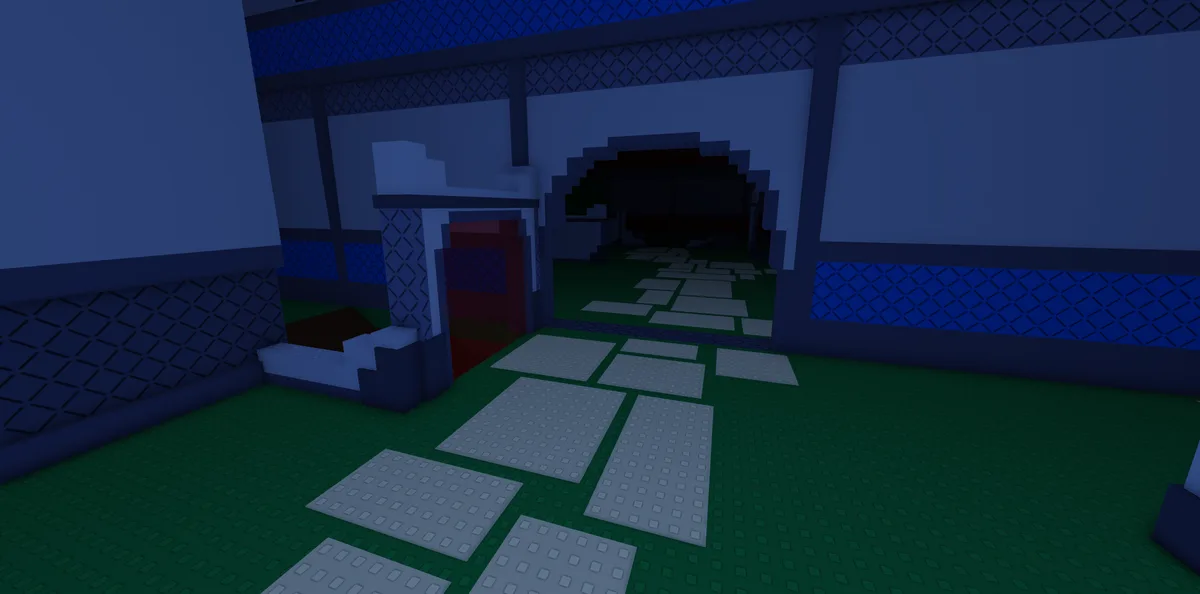
In-game view of Underground War in Forsaken. Image: Forsaken (Roblox) © Forsaken Dev Group, via the Official Forsaken Wiki (forsaken.wiki).
Best Settings by Hardware Tier
Not every player has the same hardware, so "best settings" means something different depending on what machine you are running Forsaken on. Below are three preset configurations targeting specific hardware levels. Find the tier that matches your setup and apply those settings as a starting point, then fine-tune from there.
Low-End Tier (Laptops, Integrated Graphics, Old PCs)
If you have integrated graphics (Intel UHD, AMD Vega), a laptop without a dedicated GPU, or a desktop older than 2018, use these settings to maintain a stable 30-40 FPS:
- •Graphics Quality: Level 1-2. This strips away shadows, reduces particle effects, and lowers texture resolution. The game will look noticeably flatter but will run smoothly on even a 2015 laptop with Intel HD 520 graphics.
- •Rendering Mode: D3D11. Older GPUs and integrated graphics often do not support Vulkan properly. D3D11 is the most compatible option and avoids rendering crashes on legacy hardware.
- •Resolution: Drop to 720p if you are running a 1080p display. Roblox does not have an in-game resolution scaler, but you can change your Windows display resolution to 1280x720 before launching Roblox. This cuts the number of pixels your GPU renders by 56%.
- •Close ALL background applications. On low-end hardware, Chrome tabs alone can steal 500MB+ of RAM and 5-15% CPU. Close Discord (or use the web version), close browser tabs, and disable any overlay programs like Game Bar.
- •Disable Windows visual effects: Go to System Properties > Advanced > Performance Settings > Adjust for best performance. This frees CPU and GPU resources that Windows uses for desktop animations.
- •Power plan: Set Windows power plan to "High Performance" in Control Panel > Power Options. The default "Balanced" plan throttles CPU and GPU to save energy, which directly reduces FPS.
- •Expected results: 30-45 FPS on most maps, with occasional dips to 25 FPS during heavy ability usage or multiple survivors near the same generator.
Mid-Range Tier (Entry Gaming Laptops, Older Desktops with Dedicated GPU)
If you have a dedicated GPU from the last 5 years (GTX 1050 and above, or RX 570 and above), 8GB+ RAM, and an SSD, use these settings for a stable 60 FPS:
- •Graphics Quality: Level 4-6. This gives you decent shadow quality, reasonable particle effects, and sharp textures without overwhelming your GPU. Level 5 is the sweet spot for most mid-range setups.
- •Rendering Mode: Vulkan. Mid-range GPUs from NVIDIA and AMD both support Vulkan well, and it typically provides 10-20% better performance than D3D11 on compatible hardware.
- •Resolution: Native 1080p. Your hardware should handle full HD without issues at these settings.
- •VSync: Off. Your GPU can likely push above 60 FPS at Level 4-5 settings, and VSync would cap you at 60 while adding input lag. Pair this with an FPS unlocker for best results.
- •Close heavy background apps but you do not need to close everything. Discord and a music player are fine. Avoid running OBS or streaming software while playing if you want consistent 60 FPS.
- •NVIDIA users: Open NVIDIA Control Panel > Manage 3D Settings > Program Settings > add Roblox. Set "Power management mode" to "Prefer maximum performance" and "Texture filtering quality" to "Performance."
- •AMD users: Open AMD Software > Gaming > Roblox profile. Enable Radeon Anti-Lag for reduced input latency. Set Texture Filtering to "Performance."
- •Expected results: 60-90 FPS on most maps, stable 60 FPS even during intense moments with multiple abilities and effects on screen.
High-End Tier (Modern Gaming PCs, 2022+ Hardware)
If you have a modern GPU (RTX 3060 and above, or RX 6700 XT and above), 16GB+ RAM, SSD storage, and a high refresh rate monitor, push for maximum visual quality AND high FPS:
- •Graphics Quality: Level 8-10. Your hardware can handle full graphical quality without dropping below 60 FPS. The Forsaken maps look substantially better at Level 10 with full volumetric lighting and soft shadows.
- •Rendering Mode: Vulkan. Modern GPUs leverage Vulkan to its fullest potential with the best frame pacing and lowest CPU overhead.
- •Resolution: Native resolution of your monitor. If you have a 1440p or 4K display, run at native. Roblox games including Forsaken scale well to higher resolutions.
- •VSync: Off. Combined with an FPS unlocker, you can push 120-240+ FPS which dramatically reduces input lag on high refresh rate monitors.
- •FPS Unlocker: Essential for this tier. See the FPS unlocker section below. There is no reason to stay at 60 FPS when your hardware and monitor support more.
- •NVIDIA Reflex / AMD Anti-Lag: If your GPU supports these technologies, enable them for the lowest possible input latency. This is the competitive edge that high-end hardware provides.
- •Monitor settings: Enable your monitor's highest refresh rate in Windows Display Settings. Many players buy 144Hz monitors but forget to set the refresh rate above 60Hz in Windows.
- •Expected results: 120-300+ FPS depending on exact hardware and map. Consistent frame times with no stuttering or hitching.
Roblox Graphics Quality set to "Automatic" mode does NOT always pick the best level for your hardware. Automatic mode adjusts dynamically during gameplay, which causes inconsistent frame rates as the quality constantly shifts up and down. This creates micro-stuttering that feels worse than running at a stable lower setting. Always set Graphics Quality to a manual level. Find the highest level where your FPS stays above 45 at all times, then lock it there. Consistent frame delivery is more important than occasionally hitting higher quality levels that cause drops.
FPS Boost Techniques Beyond Graphics Settings
Graphics settings are only half the equation. Your operating system, background processes, hardware configuration, and even your network connection affect how smoothly Forsaken runs. These techniques work on any hardware tier and can collectively add 15-30 FPS.
Windows Optimization
Windows-specific tweaks that free up system resources for Roblox:
- •Disable Game Bar: Settings > Gaming > Xbox Game Bar > Off. Game Bar runs an overlay process that consumes GPU resources even when you are not recording. Disabling it frees 2-5% GPU headroom.
- •Disable Game DVR: Settings > Gaming > Captures > turn off "Record in the background." Background recording writes video to disk constantly, eating CPU, GPU, and storage bandwidth.
- •Disable hardware-accelerated GPU scheduling if you experience stuttering: Settings > System > Display > Graphics > Change default graphics settings. Some older GPU drivers conflict with this feature causing periodic frame drops.
- •Clean up startup programs: Task Manager > Startup tab > disable everything except essential programs. Fewer startup programs means more available RAM and CPU from the moment you boot.
- •Disk cleanup: Run Disk Cleanup (search "Disk Cleanup" in Start) and clear temporary files. A nearly full drive (above 90% capacity) slows down everything because Windows needs free space for virtual memory and file caching.
- •Update GPU drivers: NVIDIA and AMD release driver updates monthly that often include Roblox-specific optimizations. Use GeForce Experience or AMD Software to keep drivers current. Outdated drivers are one of the most common causes of poor FPS in Roblox games.
- •Set Roblox process priority: After launching Roblox, open Task Manager > Details tab > find RobloxPlayerBeta.exe > right-click > Set Priority > High. This tells Windows to allocate more CPU time to Roblox over other background processes. You must do this each session.
Mac Optimization
Mac-specific tips for improving Forsaken performance:
- •Close Safari tabs: Safari is notorious for memory usage on Mac. Each tab can consume 200-500MB. Close all tabs before playing.
- •Use Metal rendering: In Roblox settings, ensure the rendering API is set to Metal (it should auto-detect on Mac). Metal is Apple's native graphics API and performs significantly better than OpenGL on Mac hardware.
- •Disable Spotlight indexing during play: Spotlight can spike CPU usage during indexing. If you notice stuttering, open Terminal and run "sudo mdutil -i off /" to temporarily disable it. Re-enable with "sudo mdutil -i on /" after playing.
- •Activity Monitor: Check Activity Monitor before playing to ensure no process is consuming excessive CPU. Common offenders include Photos (iCloud sync), Time Machine backups, and software update processes.
- •Apple Silicon Macs (M1/M2/M3): These run Roblox through Rosetta 2 translation which works well but adds slight overhead. Performance is generally good at Graphics Quality 4-6.
Mobile Optimization
Get the most FPS out of your phone or tablet for Forsaken:
- •Free up RAM: Before launching Roblox, swipe away all other apps from the recent apps menu. Roblox on mobile needs 1.5-2GB of RAM for Forsaken, and phones with 4GB total have very little headroom.
- •Disable battery saver: Battery saving modes throttle CPU and GPU to extend battery life. This directly reduces FPS. Play while plugged in and with battery saver off for consistent performance.
- •Reduce screen brightness slightly: Maximum brightness causes thermal throttling faster. Setting brightness to 60-70% keeps the phone cooler and maintains higher FPS for longer sessions.
- •Close all notifications: Notifications cause brief CPU spikes that create micro-stutters. Enable Do Not Disturb mode before playing.
- •Storage: Keep at least 2-3GB of free storage. When phones run low on storage, they slow down overall including app performance.
- •Phone temperature: If your phone feels hot, stop playing for 5-10 minutes. Thermal throttling can drop your FPS from 60 to 20 in extreme cases. Consider a phone cooling fan accessory for extended sessions.
- •In Roblox mobile settings, set Graphics Quality to 2-4. Mobile GPUs are significantly weaker than desktop GPUs, so do not try to run high settings.
Lag Fix Solutions -- Diagnosing and Solving Connection Issues
Not all "lag" in Forsaken is FPS-related. Network lag (high ping, packet loss) causes a completely different set of symptoms: rubber-banding, delayed actions, other players teleporting, and hit registration issues where the killer hits you through a vault you clearly completed. Here is how to diagnose which type of lag you have and fix it.
How to Tell FPS Lag from Network Lag
Understanding the difference saves you from applying the wrong fix:
- •FPS lag (low frame rate): The entire game stutters uniformly. Everything moves in choppy increments. Your own movement, the killer, other survivors, and animations all look equally choppy. The Roblox performance stats (press Shift+F5) show low FPS numbers.
- •Network lag (high ping): Your movement feels smooth but other players teleport or stutter. You might round a corner and then get "pulled back" a moment later (rubber-band). Actions feel delayed -- you press repair but nothing happens for half a second. The Roblox network stats (press Shift+F5) show high ping (above 100ms is bad, above 200ms is very bad).
- •Server lag: The ENTIRE lobby stutters simultaneously. All players experience the same delays. This means the Roblox server itself is overloaded. You cannot fix this; you can only leave and find a new match.
- •Press Shift+F5 during a match to open the performance overlay. This shows your current FPS, ping, and packet loss percentage. Use this to diagnose which type of lag you are experiencing before applying fixes.
Fixing Network Lag
Solutions for high ping and connection issues in Forsaken:
- •Use a wired ethernet connection instead of WiFi. WiFi adds 5-30ms of latency and is susceptible to interference from other devices, walls, and microwave ovens. A simple ethernet cable eliminates all of these issues instantly.
- •If WiFi is your only option, move closer to your router and ensure you are on the 5GHz band (not 2.4GHz). 5GHz has lower range but much less interference and higher bandwidth.
- •Close bandwidth-heavy applications: Streaming video (Netflix, YouTube, Twitch), downloading files, and cloud sync services (Google Drive, Dropbox) consume bandwidth that competes with Roblox. Pause or close them during gameplay.
- •Check for other devices on your network. A family member streaming 4K video or downloading a large game update can saturate your internet connection. If possible, play during low-usage times or ask others to reduce their bandwidth usage.
- •Enable QoS (Quality of Service) on your router if supported. QoS prioritizes gaming traffic over other traffic types. Check your router's admin page (usually 192.168.1.1 or 192.168.0.1) for QoS settings.
- •If your ISP provides inconsistent speeds, consider a gaming VPN that routes your traffic through optimized paths. Note: a VPN adds some latency by default, so only use one if it provides a shorter route to Roblox servers than your ISP's default path. Test before committing.
- •Roblox server region: Forsaken matches are hosted on Roblox servers across multiple regions. You cannot directly choose your server region, but playing during off-peak hours (late night / early morning in your region) often results in being placed on closer, less loaded servers.
Fixing Roblox-Specific Lag
Roblox client issues that cause lag independent of your hardware or network:
- •Clear Roblox cache: Close Roblox completely, then navigate to %localappdata%\Roblox\logs and delete all files. Also clear %temp%\Roblox. Corrupted cache files can cause stuttering and long load times.
- •Reinstall Roblox: If clearing cache does not help, a full uninstall and reinstall replaces all client files. This fixes corrupted installations that cause persistent lag.
- •Disable browser-based Roblox: If you launch Roblox through a browser, the browser adds overhead. Use the Roblox desktop app instead for slightly better performance.
- •Check Roblox server status: Visit status.roblox.com when experiencing unusual lag. Roblox occasionally has platform-wide issues that affect all games including Forsaken. In these cases, waiting is the only solution.
System Requirements for Forsaken
Forsaken runs on any device that supports Roblox, but the experience varies dramatically based on your hardware. Here are the minimum, recommended, and ideal specifications for playing Forsaken at different quality levels.
| Component | Minimum (30 FPS, Low) | Recommended (60 FPS, Medium) | Ideal (120+ FPS, High) |
|---|---|---|---|
| CPU | Intel Core i3-4th Gen / AMD FX-4300 or equivalent | Intel Core i5-8th Gen / AMD Ryzen 5 2600 or equivalent | Intel Core i5-12th Gen / AMD Ryzen 5 5600 or newer |
| GPU | Intel UHD 620 / NVIDIA GT 730 / AMD Radeon R7 250 | NVIDIA GTX 1050 Ti / AMD RX 570 (4GB VRAM) | NVIDIA RTX 3060 / AMD RX 6700 XT (8GB+ VRAM) |
| RAM | 4GB (8GB for Windows 10/11) | 8GB DDR4 | 16GB DDR4 or DDR5 |
| Storage | 2GB free space (HDD acceptable) | 5GB free space on SSD | 10GB+ free space on NVMe SSD |
| OS | Windows 7 / macOS 10.13 / Android 7 / iOS 13 | Windows 10 / macOS 12 / Android 10 / iOS 15 | Windows 11 / macOS 14 / Latest mobile OS |
| Internet | 5 Mbps download, 1 Mbps upload | 15 Mbps download, 5 Mbps upload | 50+ Mbps download, 10+ Mbps upload, wired |
| Monitor | Any resolution, any refresh rate | 1080p, 60Hz | 1080p-1440p, 144Hz+ |
| Mobile | Any device running iOS 13+ or Android 7+ | iPhone 11+ / Galaxy S20+ or equivalent | iPhone 14 Pro+ / Galaxy S23+ or iPad Pro |
FPS Unlocker Guide for Forsaken
By default, Roblox caps all games at 60 FPS. For most players on 60Hz monitors, this cap is not a problem. But if you have a 120Hz, 144Hz, 165Hz, or 240Hz monitor, you are leaving a significant amount of performance and visual smoothness on the table. An FPS unlocker removes this cap, allowing Forsaken to render as many frames as your hardware can produce. Higher frame rates mean smoother motion, lower input lag, and more visual information for split-second decisions during chases.
Is FPS Unlocking Against the Rules?
This is the most common question players have, so let us address it directly:
- •Roblox officially increased the FPS cap to 240 FPS in their client settings as of late 2024. You can now unlock FPS without any third-party tools by going to Roblox Settings > Graphics > and setting the FPS cap to your desired value.
- •Previously, players used third-party FPS unlocker applications like "rbxfpsunlocker." While Roblox staff stated in the past that they would not ban for using FPS unlockers, the landscape has changed now that official support exists.
- •The recommended approach in 2026: Use Roblox's built-in FPS cap setting rather than any third-party tool. This is fully sanctioned, zero-risk, and provides the same benefit.
- •If the built-in setting does not appear in your Roblox client, ensure your Roblox app is fully updated to the latest version.
How to Unlock FPS Using Roblox Built-In Settings
Step-by-step process to increase your FPS cap:
- •Step 1: Open Roblox and go to Settings (gear icon in the top-left corner of the Roblox app home screen).
- •Step 2: Navigate to the Graphics section.
- •Step 3: Look for "FPS Cap" or "Frame Rate Limit." The default is 60.
- •Step 4: Change this to match your monitor's refresh rate. If you have a 144Hz monitor, set it to 144 or "Unlimited." If you have a 60Hz monitor, there is minimal benefit to going above 60.
- •Step 5: Launch Forsaken and press Shift+F5 to verify your FPS is now exceeding 60.
- •Step 6: If you notice screen tearing (horizontal lines across the screen during fast camera movement), either enable VSync (which adds input lag but eliminates tearing) or ensure your monitor's variable refresh rate (FreeSync / G-Sync) is enabled in your monitor's OSD settings and your GPU control panel.
What FPS Cap Should I Use?
Match your FPS cap to your hardware capabilities and monitor refresh rate:
- •60Hz Monitor: Keep the cap at 60 FPS. Running higher than your monitor refresh rate does slightly reduce input lag, but the benefit is marginal at 60Hz. The exception is if you want to reduce frame time variance.
- •120Hz Monitor: Set cap to 120 FPS. This is double the default and provides noticeably smoother motion. You need at least a mid-range GPU to sustain 120 FPS in Forsaken.
- •144Hz Monitor: Set cap to 144 FPS. The most common gaming monitor refresh rate. The difference between 60 and 144 FPS is dramatic for gameplay feel, especially during fast chases.
- •240Hz Monitor: Set cap to 240 FPS or Unlimited. Only high-end GPUs can sustain 240 FPS, but the ultra-low input lag is meaningful for competitive play.
- •Unlimited: Only use this if you want the absolute lowest possible input lag and your GPU can handle it. Unlimited FPS with no cap can cause excessive GPU heat and power consumption.
- •General rule: Set your cap slightly above your monitor refresh rate. If you have a 144Hz monitor but can only sustain 120 FPS, set the cap to 144 but accept that you will occasionally dip below your refresh rate. This is still better than being locked at 60.
Pro Tip
After applying all graphics settings and FPS optimizations, load into a Forsaken match on the Haunted Mansion map (the most demanding map due to indoor lighting and three floors) and press Shift+F5 to monitor your FPS. Walk through every floor and room while watching the FPS counter. Your minimum FPS during this walkthrough is your realistic baseline -- not the FPS you see while standing still in an empty corridor. If your minimum is below 45, lower Graphics Quality by one level and repeat. The goal is to find the highest Graphics Quality level where your minimum FPS stays above 45. For complete map strategies to test on while optimizing, visit our map guides at /forsaken-maps.
Forsaken-Specific Visual Settings That Affect Gameplay
Beyond the standard Roblox graphics menu, Forsaken itself has in-game settings that control visual elements specific to the horror experience. These settings are found in the Forsaken options menu (not the Roblox settings menu) and can impact both performance and your ability to see gameplay-relevant information.
Visual Gameplay Settings
Settings within Forsaken that affect what you see and how you play:
- •Screen Shake: Controls how much the camera shakes during events like getting hit, dropping from heights, or generator explosions. Competitive players turn this off or set it to minimum because shake obscures your view during critical moments and can cause motion sickness during extended sessions.
- •Blood Effects: Controls the intensity of visual blood splatter when survivors are hit. Setting this to Low reduces visual clutter on screen. Has a minor FPS impact at High settings due to particle effects.
- •Heartbeat Overlay: When a killer is nearby, a red heartbeat overlay pulses on your screen. This is important gameplay information, so keep it enabled. Some players find the overlay distracting and reduce its opacity if an option is available.
- •Music Volume: Not a visual setting but affects awareness. Many competitive players reduce music volume to 10-20% and increase SFX volume to 100%. Audio cues (footsteps, ability sounds, generator completion) are far more valuable for gameplay than the background music.
- •Gamma / Brightness: Forsaken intentionally uses dark environments for horror atmosphere. Some players increase their monitor brightness or adjust gamma to see better in dark areas. This is personal preference, but be aware that overly bright settings can wash out the visual identity of the game.
- •HUD Scale: Forsaken allows you to scale the in-game HUD elements (health bar, stamina bar, generator icons, ability cooldowns). On smaller screens, increase HUD scale to 110-120% for better visibility. On large monitors, the default 100% or even 90% keeps the HUD unobtrusive.
Audio Settings That Complement Visual Optimization
Sound design in Forsaken provides critical gameplay information that reduces your reliance on visual cues:
- •Use headphones. Forsaken has spatial audio that lets you hear the killer's direction relative to your position. Speakers flatten this to basic stereo, losing directional information. Even cheap earbuds provide better spatial awareness than laptop speakers.
- •Set Master Volume to 80%, Music to 15%, SFX to 100%, Voice to 50%. This prioritizes gameplay sounds (footsteps, ability cues, generator progress) over atmospheric music that does not help you survive.
- •Killer-specific audio cues: Each killer has a unique terror radius sound, chase music, and ability audio. Learning these sounds means you can identify the killer before you see them, giving you time to prepare. Check our killer guides at /forsaken-killers for audio cue details per killer.
- •Generator completion sounds are audible map-wide. Count the generator completion sounds to track match progress without checking the scoreboard.
- •Survivor injured audio: Injured survivors make groaning sounds that killers can track. If you are injured, be aware that your audio gives away your position even behind walls.
Budget Setup (Max FPS, Min Quality)
Graphics Quality: 1-2. Rendering: D3D11. VSync: Off. Resolution: 720p if needed. Close all background apps. Power plan: High Performance. Disable Game Bar and Game DVR. Expected: 30-45 FPS on any hardware. Use this if your goal is simply making the game playable on old or weak hardware. Every map will run at stable frames.
Balanced Setup (Good Looks, Stable FPS)
Graphics Quality: 4-5. Rendering: Vulkan. VSync: Off. FPS Cap: 60 or monitor refresh rate. Close heavy background apps. GPU driver settings: Performance mode. Expected: 60+ FPS on mid-range hardware. The sweet spot for most players -- the game looks good and runs smoothly. Screen shake off, SFX volume 100%.
Competitive Setup (Max FPS, Good Enough Looks)
Graphics Quality: 3-4. Rendering: Vulkan. VSync: Off. FPS Cap: Unlimited or monitor refresh rate. Process priority: High. Close all non-essential apps. Screen shake off. Music volume 15%. SFX 100%. Expected: 120-200+ FPS on gaming hardware. Prioritizes frame rate and input responsiveness over visual quality.
Visual Showcase (Max Quality for Content Creators)
Graphics Quality: 9-10. Rendering: Vulkan. VSync: On (prevents tearing in recordings). Resolution: Native (1440p or 4K if available). All effects enabled. Music volume 50% for video ambiance. Expected: 60+ FPS on high-end hardware. Best for screenshots, YouTube videos, and showcasing Forsaken maps. Check our merch page at /merch for recording gear recommendations.
Final Thoughts
Optimizing your Forsaken settings is not about finding one magic configuration -- it is about understanding what each setting costs in performance, what it provides in visual quality, and making informed tradeoffs based on your specific hardware. The single most impactful changes for most players are: setting Graphics Quality to a fixed manual level instead of Automatic, disabling VSync for lower input lag, closing background applications, and unlocking FPS if you have a high refresh rate monitor. Apply the hardware-tier settings from this guide as your starting point, test on the Haunted Mansion map using Shift+F5, and adjust from there until you find your personal sweet spot. Remember that stable FPS is always more important than high FPS -- a consistent 50 FPS feels better than FPS that bounces between 40 and 80.
- • Set Graphics Quality to a fixed manual level (never use Automatic) to prevent micro-stuttering from constant quality adjustments during gameplay
- • Disable VSync for lower input lag unless screen tearing is unbearable, then use a variable refresh rate monitor instead
- • Vulkan rendering mode typically provides 10-20% better performance than D3D11 on modern NVIDIA and AMD GPUs released in the last 5 years
- • Roblox now has a built-in FPS cap setting that lets you unlock beyond 60 FPS without any third-party tools -- set it to match your monitor refresh rate
- • Press Shift+F5 during gameplay to see your real-time FPS and ping, which helps diagnose whether your lag is FPS-related or network-related
- • Low-end players should drop resolution to 720p, use Graphics Quality 1-2, close all background apps, and set Windows power plan to High Performance
- • Use headphones and set SFX to 100% with music at 15% for maximum gameplay audio awareness including killer footsteps and ability cues
- • For the best Forsaken experience paired with optimized controls, also read our complete keybinds guide, and visit /forsaken-survivors for character-specific optimization tips
Open Roblox right now, set your Graphics Quality to the level recommended for your hardware tier, disable VSync, set your FPS cap to match your monitor, and load into a Haunted Mansion map match. Press Shift+F5 and check your minimum FPS as you walk through every room. Adjust until your minimum stays above 45 FPS. This 10-minute optimization session will improve every match you play from now on.
Related Forsaken Guides
Jane Doe Forsaken Guide 2026: How to Unlock Her, Crystal Pitch & Hatchet
Jane Doe Forsaken guide: how to unlock her through the Cabin basement quests, Crystal Pitch and Hatchet explained, and her connection to John Doe.
Taph, Dusekkar & Veeronica: Which Forsaken Support Survivor Should You Buy?
Compare Taph, Dusekkar and Veeronica in Forsaken: abilities, Player Point costs, and which of the three actually fits how you play.
Forsaken Generator Puzzle Guide: Solve Numberlink Fast and Shorten the Round
Forsaken generators are Numberlink puzzles, not progress bars. Learn the 6x6 grid rules, interruption traps, exact rewards, and techniques to solve them faster.
Forsaken Player Points Guide 2026: How to Earn Them (and Where You Cannot)
Forsaken Player Points guide: how the currency is earned, why private servers pay nothing, character costs, and how EXP levelling to milestone skins works.
Forsaken Status Effects Explained: Every Category and How to Play Around Them
Forsaken status effects guide: damage over time, stat changes, damage output, visibility effects, where they come from, and how to counter each one.
Back to the ForsakenHub homepage for the full Forsaken Roblox guide hub, or browse all guides. You can also play the game directly on Forsaken on Roblox.